Performance optimisation for Flutter
I am exploring various techniques for performance optimisations.
After a quick google search
Watched a recording from the Flutter Heroes event by Alexandre
https://www.youtube.com/embed/7i5YFxEZijo?feature=oembed
Video summary (AI gen, human edit)
The video discusses several performance optimisations for Flutter applications, primarily focusing on identifying and resolving issues using Flutter DevTools [06:32]. Key optimisations include:
- First thing, run the app in profile mode, enable track rebuild (in your code) in devtools
- Avoiding Blocking the UI Thread: Offload computationally expensive operations to another thread using compute() to prevent the UI thread from being blocked by
jsonCodec.decodeand keep the app responsive [29:25]. - Hint: look for
jsonCodec.decodein devtools - Optimizing Widget Building: Use ListView.builder for lists to virtualize items, building only what's visible and reducing the number of widgets rendered [11:18]. The general rule is to build as few elements as possible and use lazy loading [12:08].
- Confining Data Updates: Limit setState calls to only the widgets that need to be rebuilt to avoid unnecessary rebuilding of large parts of the widget tree [16:05]. Good architecture and adherence to the single responsibility principle can help achieve this [17:26].
- Hint: extract state updates to a separate widget which will actually get affected by setstate to avoid rebuilding whole page.
- Managing Image Assets Efficiently: Use small images with appropriate dimensions (e.g., width * pixelRatio) and resolution-aware assets to reduce memory and CPU usage [21:11]. Large images can lead to slow loading and janky scrolling [21:59].
- Hints: include assets with the correct resolution,
- Learn: Larger the image more the raster time, more the memory usage
- Memory usage = image resolution * pixel ratio * 4byte
- Minimizing Expensive Rendering Operations: Reduce the use of computationally expensive operations like Canvas.saveLayer (implicitly called by widgets like ShaderMask or ColorFilter or
clipping) on the raster thread [24:59]. - Hint: search of savelayer, shader etc in devtools
The speaker also mentions Flashlight, an open-source tool for automated performance measurement and comparison in Flutter, native, and React Native applications [32:01].
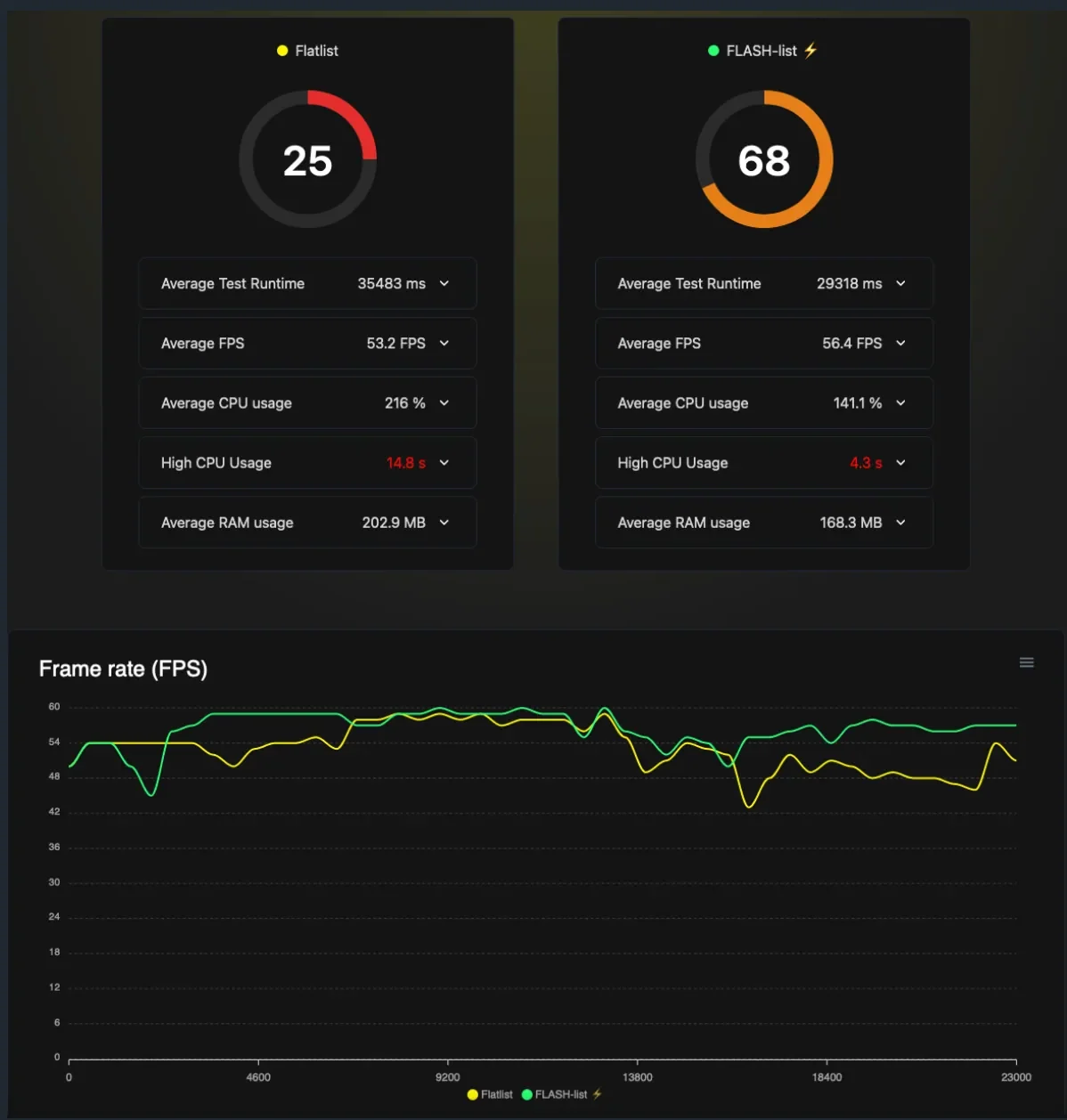
Flashlight https://github.com/bamlab/flashlight
Video 2: Optimise Flutter Apps Using Dart DevTools by Aswin Gopinathan | Flutter Fest Workshop | GeekyAnts
https://www.youtube.com/embed/dTNMxeIfS-o?feature=oembed
The presentation covers five key areas of DevTools:
- Flutter Inspector [01:41]: This tool helps analyze the UI and widget hierarchy, providing details about properties and render objects [05:58]. It includes features like:
- Slow Animation [08:48]: Slows down animations to analyze their behavior [09:04].
- Show Guidelines [11:27]: Displays scroll direction and widget bounding boxes [11:34].
- Show Baseline [14:47]: Checks text element alignment [14:54].
- Highlight Repaints [15:46]: Identifies unnecessary widget repaints, which can be optimized using RepaintBoundary [15:55].
- Highlight Oversized Images [20:04]: Flags images with higher resolution than needed, suggesting optimization with cacheHeight and cacheWidth [20:11].
- App Sizing Tool [01:55]: Provides information about the application’s size and identifies contributing factors [01:55]. It helps visualize size contributions of modules and assets, and suggests image compression or WebP format [34:33]. It also includes:
- Dominator Tree [35:19]: Overviews packages and their size contributions [35:27].
- Call Graph [37:19]: Visualizes package call hierarchy and dependencies [37:22].
- Performance Overview [02:03]: Analyzes application performance, especially on lower-spec devices, displaying a “Jank graph” to identify skipped frames [39:54].
- Network [02:11]: Provides comprehensive information about network calls, including URLs, methods, status codes, headers, and responses [45:33].
- CPU Profiler [02:11]: Helps understand CPU processing for rendering and animations, allowing identification of areas for code optimization [48:15].
The speaker also briefly mentions the Memory tab for identifying memory leaks [50:45], the Debugger for setting breakpoints [52:08], Logging for displaying application logs [53:08], and Providers for state management analysis [53:24]. The video emphasizes using profile mode for optimization and avoiding premature optimizations [02:41].
Originally published on Medium.